
tradoshi
Communauté francophoneComunidad hispanohablanteComunidade brasileira

App updates

App improvements, as they ship.

Trader reviews on trading school pages. Rate your school from 1 to 5 stars.

Trader reviews arrive on trading school pages

Every school in the trading school directory now has its own trader reviews. Before you pick a course, you can read what traders who already took it have to say.

How to leave your review

Open your school's page: the link to write a review sits right under the school's name. You rate the school from 1 to 5 stars and tell the story of your training.

Your feedback helps other traders make an informed choice. If you trained at a school in the directory, take a moment to share your experience.

Learn more: tradoshi.com/ecoles-de-trading

Open the topic and reply →
Your positions over one year. Each asset's 12-month move, sortable.

The one-year change of every position

You can now see at a glance how the price of each of your assets has moved over the last twelve months, shown in your own currency.

Where to find it
In the Investing space, open Wealth, then Overview, and click “Positions →”. The “1 year” column shows how each asset's price has changed over twelve months.

Click the column title to sort your positions, so you can spot right away which ones climbed the most and which ones lagged behind.

Learn more: app.tradoshi.com/#inv-positions

Open the topic and reply →
Share your strategy with a single link. Your trades and P&L stay private.

Share a strategy with a link

You can now share any of your strategies with another trader. On a strategy's page, click « Share this strategy » and you get a link ready to send.

What's visible and what isn't
The link only shows the strategy's name, its description and its rules. Your trades and your P&L never appear: you share your method, not your results.

Whoever opens the link adds the strategy to their own strategies in one click. Handy for swapping a setup with a trading partner or getting your group to work from the same rules.

Learn more: app.tradoshi.com/#strategies

Open the topic and reply →
Start from a strategy template. Description and rules ready to adapt.

Start from a strategy template

No more starting your strategy from a blank page. The Strategies screen now offers templates ready for you to adapt.

The available templates
Opening range breakout, supply or demand zone, pullback in the trend and false breakout. Each one comes with its description and its rules.

Pick the one closest to the way you trade, then make it yours: edit the rules, complete the description and shape it into your own strategy.

Learn more: app.tradoshi.com/#strategies

Open the topic and reply →
Log the trades you missed. See how many R you left on the table.

Log the trades you missed

Saw a setup, hesitated and didn't take it? Now you can keep a record of it. On a strategy's page, log a trade you saw but didn't take.

How it works
Open your strategy's page and enter the entry, the stop, the target and what happened next. That trade stops being just a memory.

The page shows you how many R you left on the table. A concrete number to see whether your hesitation is costing you, and on which strategies.

Learn more: app.tradoshi.com/#strategies

Open the topic and reply →
Your positions search, filter, sort. Find any position in one click.

Search, filter and sort your positions

In the Investment space, the Positions table is now much easier to work with. No more scrolling through the whole list to find what you need.

What changes
You now have a search to find a position right away, plus a filter by asset class and by account so you only see what matters to you.

How to sort the list
Click Position, Value or Gain and the list sorts by that column. You can spot your largest holdings or the ones that have grown the most at a glance.

Learn more: app.tradoshi.com/#inv-positions

Open the topic and reply →
Your diversification scored out of 10. By sector and by region.

A diversification score out of 10 for your stocks

If you invest in stocks, you can now see at a glance whether your portfolio is well spread out. In Exposure and fees, your stocks get a score out of 10 by sector and another by geographic region.

Two scores, explained

Each score tells you what it means and how it's calculated. You know exactly what it measures, and you can see where your exposure is concentrated.

Open Exposure and fees, check your two scores and read their explanation: it helps you decide whether you want to spread your positions more evenly.

Learn more: app.tradoshi.com/#inv-analyses

Open the topic and reply →
Your net worth and its curve, up top. See how your wealth moves at a glance.

Your Overview now opens on your net worth and its curve

In the Investing space, the Overview now starts with what matters: your net worth curve sits right below your total. You see at a glance how it has moved, without hunting for it on another screen.

The month in review, account by account

The monthly summary shows the accounts that rose the most and the ones that fell the most, each with its own curve. You know straight away what is lifting your portfolio and what is holding it back.

Open the Investing space and take a look at your Overview: everything is there as soon as you land.

Learn more: app.tradoshi.com/#inv-patrimoine

Open the topic and reply →
Your full wealth picture step by step. Add each step in one click.

Your wealth, step by step in the Overview

The Overview in the Investment space now shows you what's still missing to complete your wealth picture: bank, investments, crypto, real estate, retirement savings or other assets.

How to use it

Open the Investment space and go to the Overview. You'll see the steps you haven't filled in yet. Each step is added in one click, so you can move forward at your own pace, one at a time.

That way you get a clearer view of everything you own, all in one place.

Learn more: app.tradoshi.com/#inv-patrimoine

Open the topic and reply →
Add an asset your bank in one click. See which statements it reads.

Add an asset: your bank in one click

In the Investment space, adding an asset is now simpler. You get a search bar and, right below it, the most used institutions in your country, shown as logos.

Your bank shows you the way

When you pick your bank, it tells you which statements it reads and, often, where to find them. You know right away which file to grab.

If you pick a crypto platform, its connection opens directly, no detours.

Learn more: app.tradoshi.com/#inv-ajouter

Open the topic and reply →
Android 1.3.10 The Strategies screen. Your strategies, stats and rules.

Android 1.3.10: the Strategies screen, and Oshi remembers you

New: the Strategies screen
In the menu, under Progress, open Strategies. Each strategy shows its stats, its rules and its trades, so you can see at a glance how each one is doing. It's available on every plan.

Oshi remembers you
Oshi now keeps track of what you tell it. You can read and correct what it remembers in Settings, AI assistant tab. And your conversations with Oshi follow you across all your devices.

Also in this version
The mistakes the app detects are now tagged automatically on your new trades. In the Notebook, you get search, free notes organized in folders and debriefs of your trades. In Reports, you can get your recaps by email, and there's a new Cumulative mode. Plus improvements and fixes.

Open the topic and reply →
Trade Review every partial exit. Replay each exit in one click.

Trade Review: all your partial exits

When you close a position in several parts, each of your exits now shows up in the Executions panel of Trade Review. No more guessing how you scaled out: every exit gets its own line.

The entry appears once, for the full position size. You can see at a glance how you built the trade and how you took it off.

How to use it

Open a trade in Trade Review and click an exit in the Executions panel: the replay jumps straight to that moment, so you can see what the market was doing when you took that piece off.

Learn more: app.tradoshi.com/#review

Open the topic and reply →
What each strategy really earns you. Win rate, profit factor, expectancy.

Your strategies and what they earn you

There's a new Strategies screen in the Progress section. For each strategy, you see its win rate, profit factor, expectancy and P&L. Now you know, with numbers, which way of trading actually works for you.

How to use it

A trade joins a strategy when it carries that strategy's tag. You pick it in Trade Review, from the « Strategy » menu.

Already tagging your trades? The tags you've already set turn into strategies in one click, with nothing to sort again.

Learn more: app.tradoshi.com/#strategies

Open the topic and reply →
Your Oshi conversations on every device. Your history saved to your account.

Your conversations with Oshi follow you everywhere

Your history with Oshi is now saved to your account. It no longer depends on the device where you started the conversation.

Pick up where you left off
You'll find it on your phone, your computer and the app. Start a chat on one screen and carry on from another without losing the thread.

To open it, click the « History » button in the Oshi window.

Open the topic and reply →
Oshi now remembers who you are. Answers fitted to your style.

Oshi now remembers who you are

Oshi now keeps a memory of what you tell it about yourself: your style, your assets, your trading hours and your goals. It uses that memory in every answer, so you no longer have to explain yourself each time you ask something.

You see what it keeps
Whenever Oshi remembers something new, it writes it below its answer. You always know what it has learned about you.

You stay in control
You can read and correct its memory in Settings › AI assistant, on the « Oshi's memory » card. If something has changed or isn't right, just edit it there.

Learn more: app.tradoshi.com/#params

Open the topic and reply →
Your mistakes tag themselves. Revenge trades and overtrading flagged.

Your mistakes now tag themselves

Every new trade automatically gets tagged with the mistakes the app detects: revenge trade, overtrading, oversized position and trade without a stop. No more tagging them by hand after your session.

Where to find them
You'll find them in My edge, under “My mistakes journal”. You can see at a glance which mistakes keep coming back in your trading.

Doesn't a tag feel right? Remove it: a tag you remove won't come back. The setting is in Settings › Trading & discipline.

Learn more: app.tradoshi.com/#avantage

Open the topic and reply →
TradeZella import Your notes keep titles. Notes filed in their own folder.

TradeZella import: your free notes keep their title

When you import your TradeZella notes, each free note now becomes a free note in the Notebook. It keeps its title and is filed in the « TradeZella » folder.

Before, that note was added to the daily note for the day you wrote it. Now you find it just as you had it, with its name, separate from your daily notes.

No duplicates

You can run the import again whenever you like: it never creates duplicates.

Open the topic and reply →
Your trade debriefs in the Notebook. Every debrief linked to its trade.

Your trade debriefs now in the Notebook

The Notebook has a new « Trades » tab. It lists every trade that has a debrief, with its P&L, so you can find your reviews in one place instead of hunting day by day.

How to use it

Open the Notebook and go to the « Trades » tab. Click a trade and its full debrief opens.

Want to go back to the trade itself? The « Ouvrir dans Trade Review » button takes you straight to it so you can review it in detail.

Learn more: app.tradoshi.com/#notebook

Open the topic and reply →
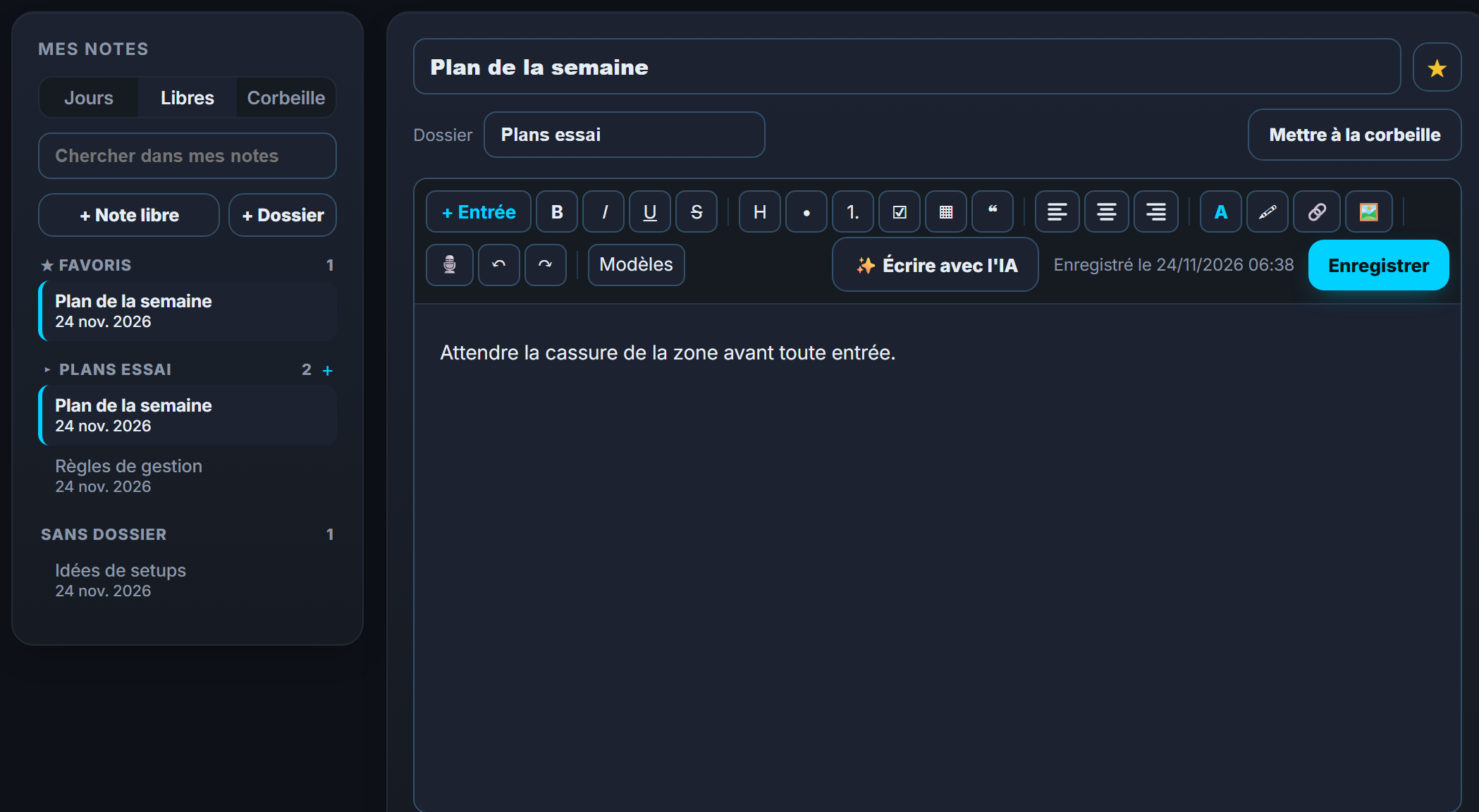
The Notebook in Free view: notes sorted by folder, Favorites at the top, and an open note showing its title and folder.

Free notes, folders and trash in the Notebook

The Notebook is no longer limited to one note per day. The new « Free » tab holds notes that aren't tied to any date: your rules, your playbook, a setup idea or anything you want to keep close.

How to stay organized
Each free note has its own title and lives in a folder. Star the ones you check often and they show up in your Favorites.

Deleted a note by mistake? It goes to the trash first, and you can restore it from there.

Learn more: app.tradoshi.com/#notebook

Open the topic and reply →
Search across all your notes. Find any idea in one click.

Search across all your Notebook notes

Remember writing something about a setup or a session, but not which day? The Notebook now has a «Search my notes» field that finds a word in everything you've written.

How it works
Type the word you're looking for. Each result shows its date and an excerpt of the text, with the word highlighted, so you can tell right away if it's the right note.

One click on the result opens the note. You get back to your past thoughts without scrolling through your notes day by day.

Learn more: app.tradoshi.com/#notebook

Open the topic and reply →
Your metrics, now cumulative over time. See your progress over the period.

Plot a cumulative metric over time

In Reports › Performance, you can now pick the "Cumulative" option. Each metric is then plotted from the start of the period you selected, instead of being shown period by period.

What changes for you
Your P&L becomes your cumulative gains curve: you watch your result build up over time. Your win rate becomes your win rate to date, so you can follow how it evolves trade after trade.

Open Reports › Performance, choose the metric you want and select "Cumulative". You see at a glance which way your trading is heading.

Learn more: app.tradoshi.com/#reports

Open the topic and reply →
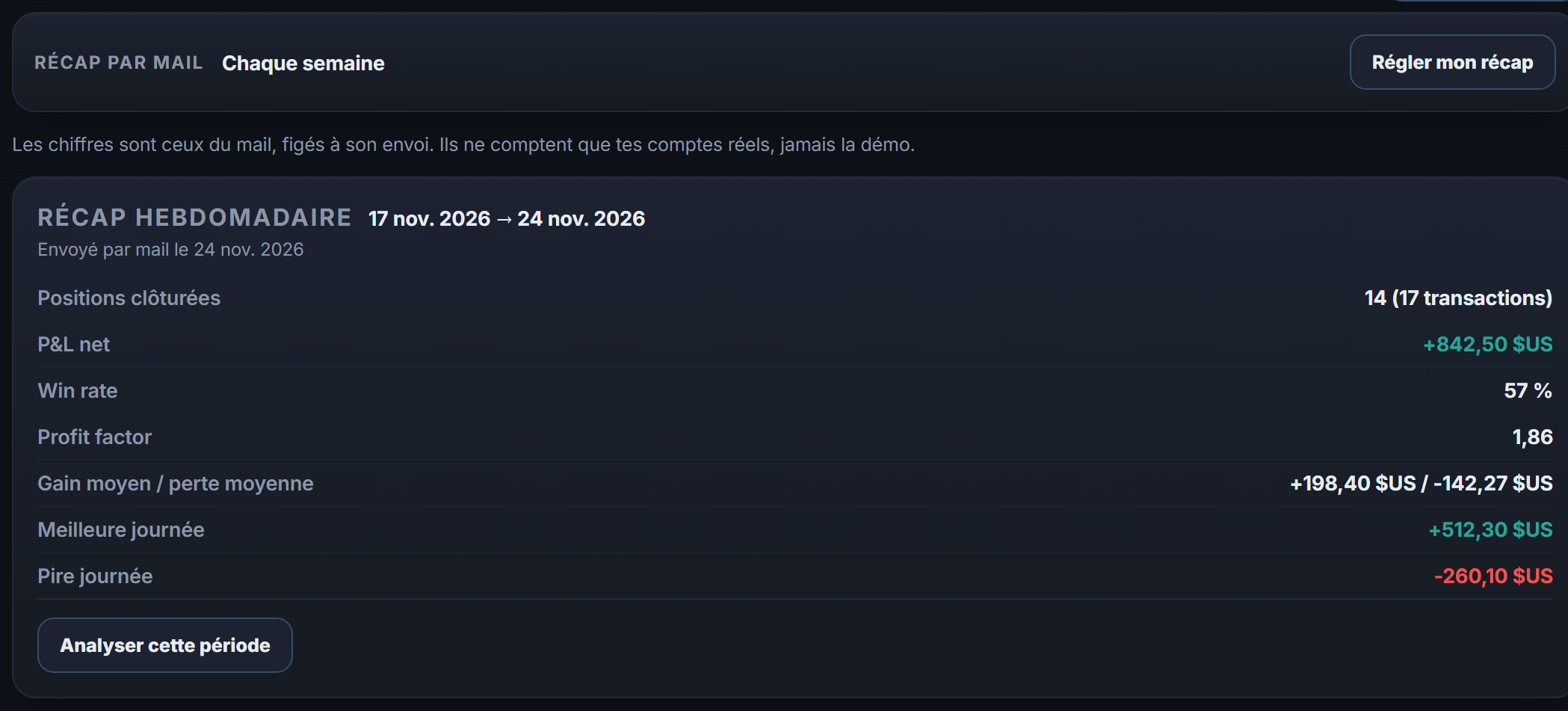
The Recaps tab in Reports: a weekly recap with its net P&L, win rate, profit factor, best day and worst day.

Find your performance recaps inside the app

The performance recaps you get by email no longer get lost in your inbox. In Reports, the Recaps tab keeps every recap you've been sent.

Reread your numbers, period by period

Open the tab and you'll find the same numbers as in the email, organized period by period. You can go back to a specific week and see how it went without digging through your messages.

Want to dig deeper? The "Analyze this period" button opens the reports table right on that recap's dates.

Learn more: app.tradoshi.com/#reports?vue=recaps

Open the topic and reply →
Your reports exported to PDF. A clean PDF for your mentor.

Reports: export your report to PDF

In Reports, you now have an Export to PDF button. It prints the view you have open: the table, Performance, Compare or What-If.

Only the report goes into the PDF, without the app menus. You get a clean document focused on your numbers.

What is it for? Sending your results to your mentor, your prop firm or your accountant, with no screenshots or cropping. Open the view you want to share, click the button, and it's ready.

Open the topic and reply →
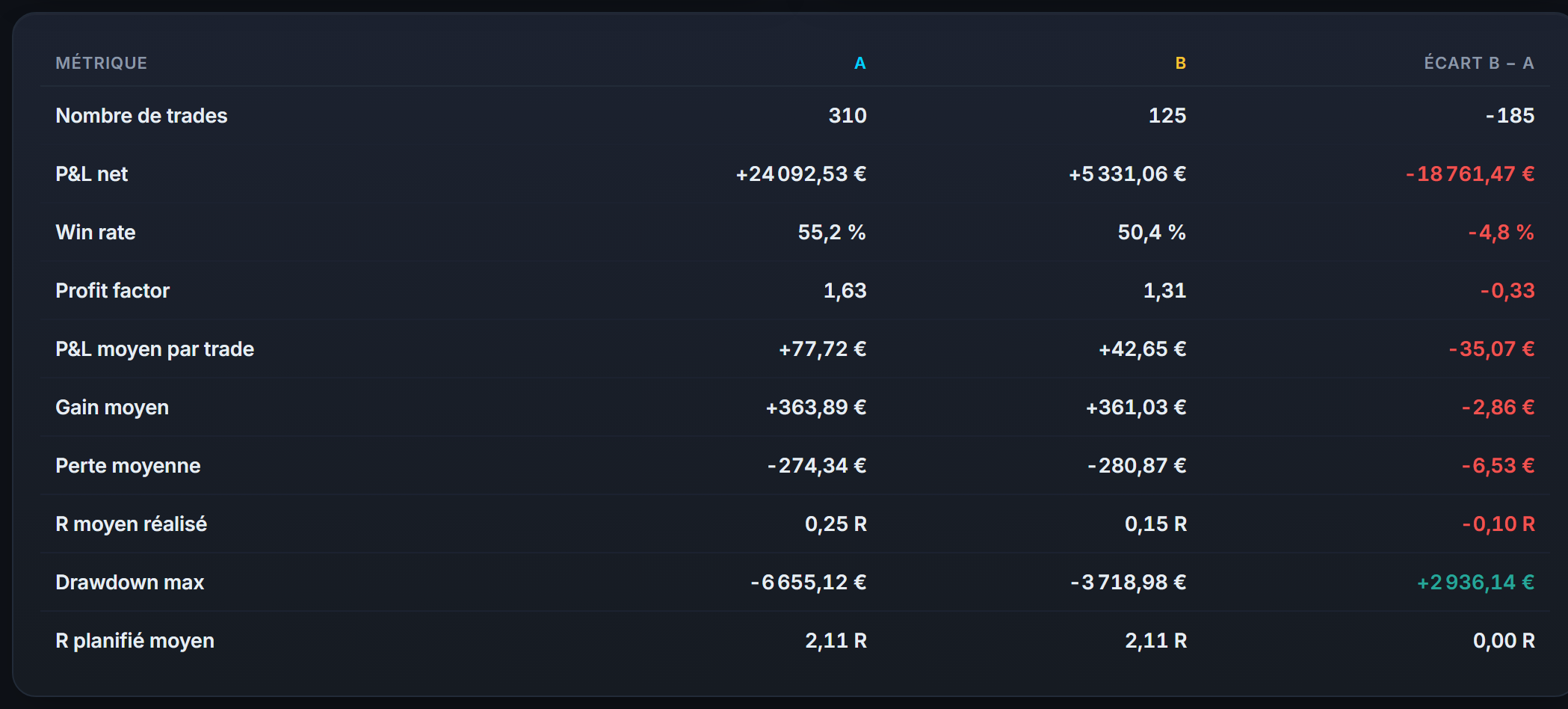
The Compare view: all trades (A) against sells only (B), with the difference for each metric.

Compare two sets of trades in Reports

Reports now has a new view: Compare. It puts two groups of your trades side by side, so you can clearly see what sets them apart.

How to use it
For each group, choose the period, the symbol, the tag, the direction and the days. You can, for example, put all your trades against your sells only, or one tag against another.

The metrics of both groups are shown next to each other, along with their two cumulative P&L curves. You see what really changes in your trading, backed by numbers rather than gut feeling.

Learn more: app.tradoshi.com/#reports

Open the topic and reply →
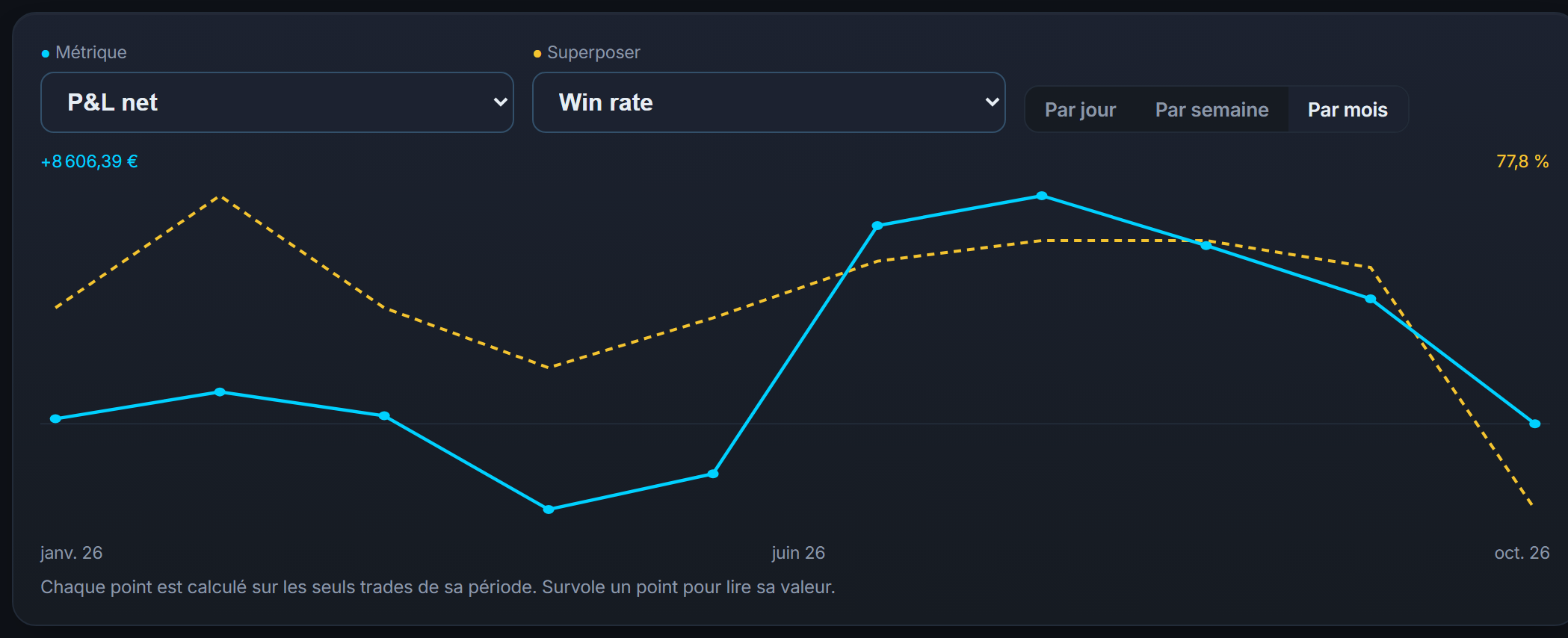
The Performance tab: net P&L and win rate plotted month by month.

Plot any metric over time

In Reports, the Performance tab now plots the metric of your choice by day, by week or by month. You see how it really evolves, instead of stopping at a single number.

Two metrics on the same chart

Overlay a second metric to see how they move together. For example, your net P&L and your win rate month by month: you can tell right away whether you earn more because you're right more often, or for another reason.

Four new metrics are added too, including average planned R and daily drawdown. Open Reports, go to Performance and pick what you want to track.

Learn more: app.tradoshi.com/#reports

Open the topic and reply →
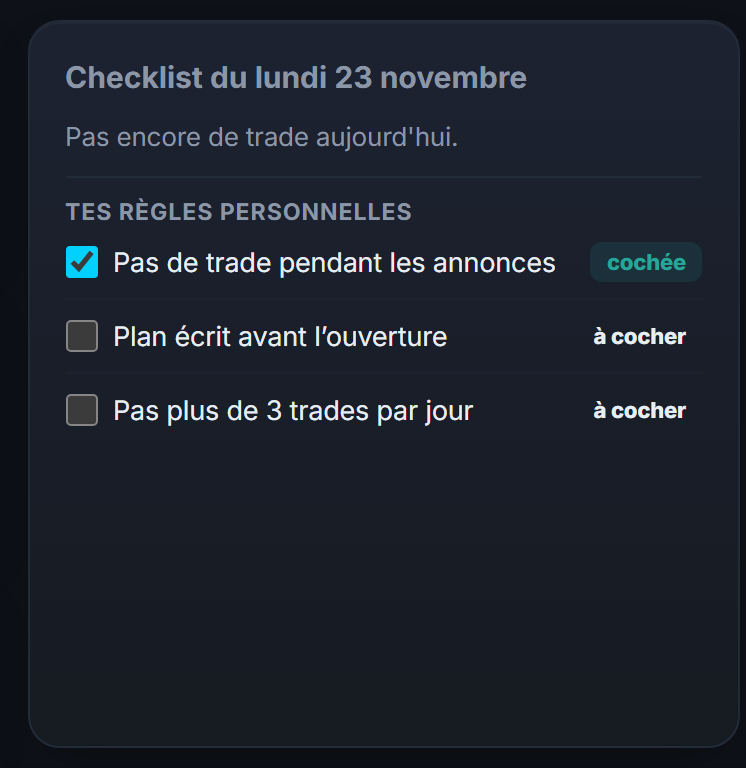
The daily checklist with three personal rules, one of them checked.

Check off your own rules every day

You can now write your own personal rules and track them day after day, alongside the automatic rules.

How to use it
Go to Settings, Trading & discipline, and write the rules you want to stick to. Then, each day, open the Progress tracker and check off the ones you kept.

Every checked rule counts toward your daily progress and your score, just like an automatic rule. Your discipline is now measured on what you chose to watch too.

Learn more: app.tradoshi.com/#progress

Open the topic and reply →
Progress tracking Three more rules. Max loss per trade and per day.

Progress tracking: three more rules

Your progress tracking now has three more rules. You'll find them in Settings, Trading & discipline.

What's new

  • Max loss per trade: set it as a % of your capital or as an amount.
  • Max loss per day: you can now also set it as an amount, even if you haven't entered a starting capital.
  • Start my day before: a day counts as kept if you do your check-in before the time you choose.

These rules stay off until you turn them on. Pick the ones that fit the way you trade, and your tracking shows you the days you stick to them.

Open the topic and reply →
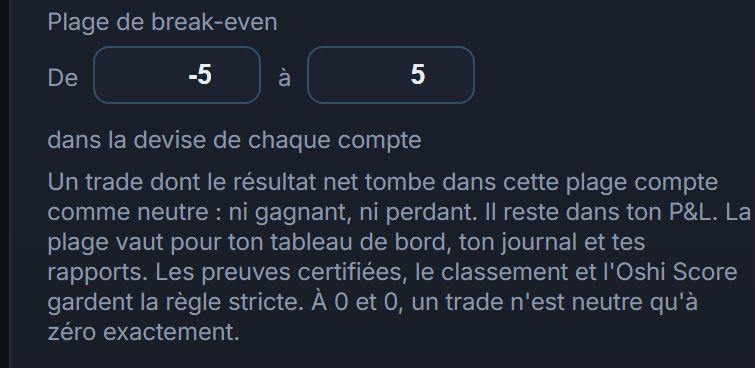
The Break-even range setting: two bounds, in the currency of each account.

Choose when a trade counts as neutral

You can now decide at what result a trade stops being a winner or a loser. A trade closed at almost zero no longer has to count as a win or a loss.

How to set it up
Go to Settings, Trading & discipline, and set your break-even range with its two bounds, in the currency of each account. Any trade whose net result falls inside that range is treated as neutral: neither a winner nor a loser.

That trade still counts in your P&L. Your dashboard, your journal and your reports all take this setting into account, so your stats better reflect the way you trade.

Learn more: app.tradoshi.com/#params

Open the topic and reply →
Futures contracts A default target. Every futures trade gets a target.

Treasury: a default target for your futures contracts

In the account Treasury, next to the default stop, you can now set a default target, contract by contract, as an amount or in points.

Every futures trade without a target gets it, new ones included. It's drawn on the trade chart and in the Trade Review, so you can compare what you were aiming for with what actually happened.

A target that comes from your broker or that you set by hand is never replaced: your data stays as it is.

How to turn it on
Go to Settings, Trading & discipline, then « Open the account Treasury ».

Open the topic and reply →
Tradoshi, the trading journal

Connect your accounts, measure what you actually do, and keep a record.

Discover Tradoshi
Also worth reading The blog · Pricing · The academy
Trading involves a risk of loss, up to the entire capital committed. Tradoshi is a journaling and analytics tool: we provide no financial advice and guarantee no result. Futures and forex trading contains substantial risk and is not for every investor: an investor could potentially lose all or more than the initial investment, and only risk capital should be used for trading. Hypothetical performance results have many inherent limitations: they are generally prepared with the benefit of hindsight, involve no financial risk, and no representation is being made that any account will or is likely to achieve similar results. Past performance is not necessarily indicative of future results. Full risk disclosure.